When a customer from Leith or Morningside walks into our workshop and says "my PC feels slow", one of the first things we do is run a diagnostic check. But what if you could do that same check yourself, at home, in about ten seconds? That's exactly why we built PRS Health Monitor — a lightweight portable app that scans your CPU, RAM, GPU, storage, and battery, then hands you a single health score from 0 to 100.
This post explains what the app does, how to set it up, what each metric means, and when the results suggest it's time to bring your machine to a professional.
What Is PRS Health Monitor?
PRS Health Monitor is a portable Windows desktop application we built in-house specifically for our customers and the wider Edinburgh community. It runs directly from a ZIP file — no installation wizard, no account creation, and no data sent anywhere without your explicit approval. The entire app sits inside a single folder you can keep on your Desktop, in Documents, or even on a USB stick.
It's designed with one goal: give everyday PC users a clear, honest answer to the question "is my computer healthy?" without requiring any technical knowledge.
The Six Metrics It Monitors
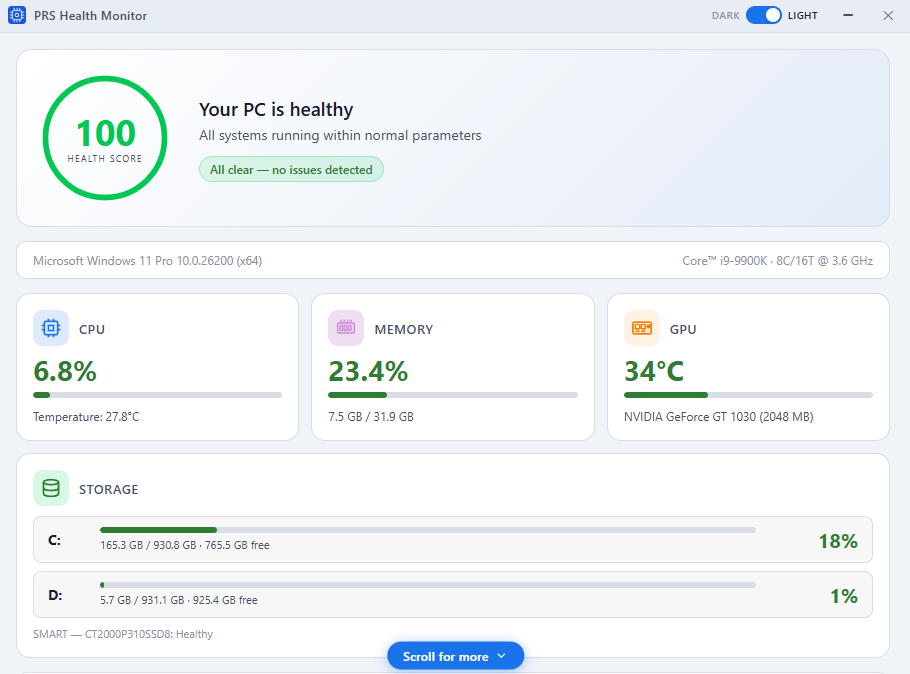
PRS Health Monitor watches six key areas of your system, updating every 30 seconds:
- CPU Usage & Temperature — Shows your processor's live workload percentage and thermal reading. If your CPU is consistently running above 85°C, the app flags it immediately. Sustained high load can indicate background malware, runaway processes, or cooling issues we commonly fix in Newington and Corstorphine laptops.
- Memory (RAM) — Displays used versus total capacity. When your system is running at 90%+ memory usage with nothing visibly open, there's usually a hidden problem. Our RAM testing guide covers the next steps.
- GPU Temperature — Monitors your graphics card's thermal output. Overheating GPUs can cause screen flickering, crashes during gaming, or silent performance throttling. If you've noticed graphical glitches, check our post on signs your GPU is failing.
- Storage Drives (SMART Health) — Reads the SMART diagnostic data from every connected drive and reports its health status. A drive showing "Warning" or "Critical" means data loss could be imminent — back up immediately and consider our data recovery service.
- Battery Health (Laptops Only) — Compares your battery's designed capacity against its current actual capacity, plus the total charge cycle count. A battery at 60% of original capacity will struggle to last through a workday. This metric is automatically hidden on desktop PCs.
- Overall Health Score (0–100) — Combines all five metrics into one number. Above 80 means your system is in good shape. Between 50 and 80 signals areas that need attention. Below 50 suggests professional diagnostics are warranted.
How to Download and Run It
Getting started takes under a minute:
- Download the ZIP — Head to our PRS Health Monitor page and click the download button. The file is approximately 78 MB.
- Extract the folder — Right-click the downloaded ZIP and choose Extract All. Put the folder anywhere convenient — your Desktop is fine.
- Run the .exe — Open the extracted folder and double-click the application. No admin rights are needed, no installer runs, and nothing is written to your registry.
Within seconds you'll see your health score and a breakdown of each metric. The app also provides plain-English tips for any issue it detects — no jargon, just clear next steps.
System Requirements
PRS Health Monitor is designed to run on virtually any modern Windows machine:
- Operating system: Windows 10 or Windows 11 (64-bit)
- RAM: 4 GB minimum
- Disk space: Approximately 200 MB when extracted
That's it. No .NET frameworks to install, no Visual C++ redistributables, no dependencies. If your PC runs Windows 10 or 11, it'll run the Health Monitor.
Privacy and Data
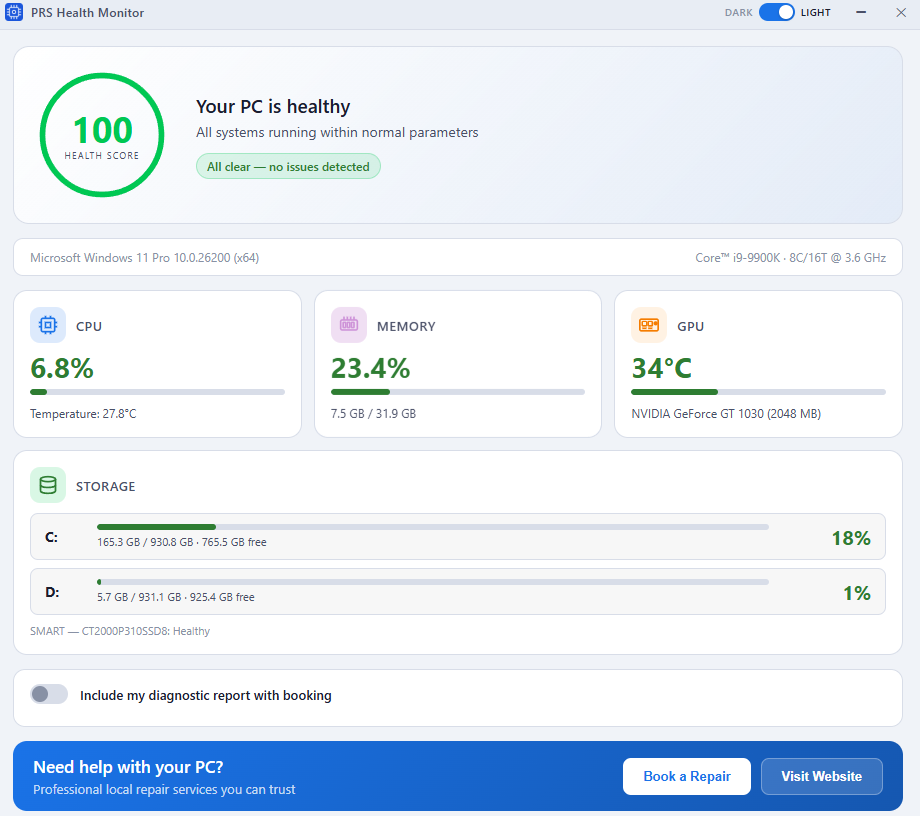
We take privacy seriously. PRS Health Monitor does not collect, transmit, or store any of your data externally. Every scan result lives entirely on your machine. The only time data leaves your PC is if you choose to share a health report when booking a repair with us — and even then, you initiate it manually.
There's no sign-up, no account, no telemetry, and no internet connection required to use the app. It works perfectly offline.
What to Do With Your Score
Here's how we recommend interpreting your result:
- 80–100: Your PC is healthy. Keep an eye on temperatures during summer months (Edinburgh heatwaves do affect laptop thermals) and run another scan in a month or two.
- 50–79: Something needs attention. Read the tips the app provides — it might be as simple as closing background apps or clearing drive space. If the issue is hardware-related, our hardware upgrade service covers the whole of Edinburgh and the Lothians.
- Below 50: Your machine has a significant issue. Common causes include a failing storage drive, degraded RAM, chronic overheating from dust buildup, or a battery well past its useful life. We'd recommend booking a diagnostic so we can pinpoint the exact component.
How It Connects to Our Repair Service
PRS Health Monitor was designed to bridge the gap between "something feels wrong" and "here's exactly what needs fixing." If your score is low, you can optionally share your health report when you book a repair. That means when your PC arrives at our Parkhead Drive workshop (or when our engineer arrives at your home in Dalkeith or Musselburgh), we already know what to look at — saving diagnostic time and getting your machine back to you faster.
Of course, using the app is completely standalone. You don't need to be a customer, and there's no obligation to book anything. It's a tool we built because we believe everyone should know how their computer is doing.
Related Guides
If your Health Monitor scan flags a specific issue, these posts may help:
- How to Fix High CPU Usage on Windows 11 — if CPU load is consistently above 80%
- How to Test Your PC RAM for Faults — if memory usage seems abnormally high
- Signs Your CPU Is Failing — if temperature readings are extreme
- How to Check Your PC Specs on Windows 11 — to understand what hardware you're working with
Ready to see how your PC is doing? Download PRS Health Monitor and check your score in under a minute.